Authentication Profiles
To enable MFA on the platform, you must set up authentication profiles. An authentication profile specifies the authentication challenges required to log in to the platform and the length of time that must elapse before a user is prompted for authentication again.
Authentication profiles work with identity policies (see Creating Identity Policies), which determine whether and when a user is presented with the challenges specified in the associated authentication profile.
Step-up authentication is an additional authentication challenge the platform requires for a sensitive action after login, such as accessing an MFA-protected secret.
Authentication profiles also control step-up MFA flows on the platform, such as Using MFA for Secrets.
The platform requests authentication when:
-
A user logs in to the platform. The identity policy and its assigned profile determine the challenges.
-
A user logs in from a new device. The Default New Device Login Profile applies unless the identity policy assigns another profile.
-
A user opens or edits an MFA-protected secret, or exports a list of secrets that includes one. See Using MFA for Secrets.
-
The challenge pass-through duration has elapsed since the user's last completed step-up challenge.
When creating a policy enabling a user to select or modify their authentication challenges (such as phone call, SMS, or FIDO2), do not require the user to complete the same challenge they are trying to set up. For example, when creating a policy enabling a user to select FIDO2 as an authentication challenge, do not use a profile that requires the user to complete the FIDO2 challenge. If you create such a defective policy, the user will be presented with the following error message: "Authentication Challenge Required. Cannot start step-up authentication flow. User does not have the attributes required to log in. Please contact your administrator."
Viewing Authentication Profiles
This feature is not available in FedRAMP-compliant tenants.
Navigate to the Authentication Profiles page. Use the Search bar to find it.
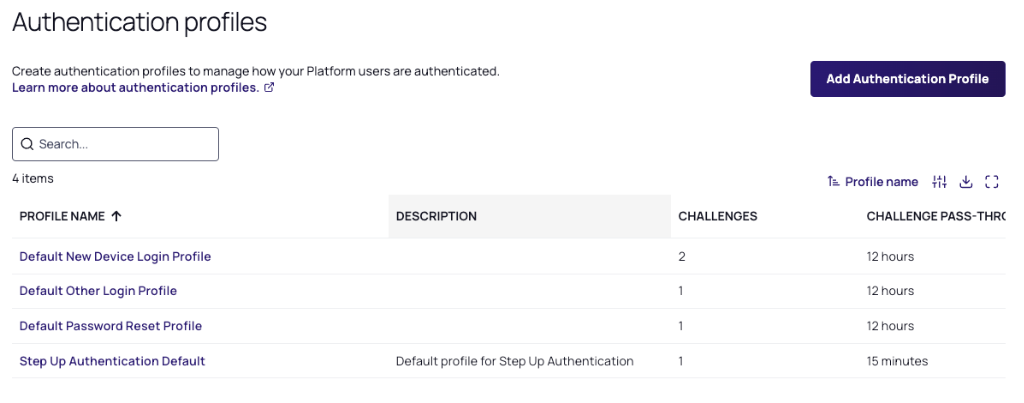
The platform comes with four built-in authentication profiles:
-
Default New Device Login Profile: Uses Password for the first challenge. For the second challenge, gives the user options to use Mobile Authenticator, Text message (SMS) confirmation code, Email confirmation code, or OATH OTP Client. 12-hour pass-through duration.
-
Default Other Login Profile: Uses Password for the first challenge. 12-hour pass-through duration.
-
Default Password Reset Profile: Gives the user options to use Mobile Authenticator, Text message (SMS) confirmation code, Email confirmation code, or OATH OTP Client for the first challenge. 12-hour pass-through duration.
-
Step Up Authentication Default: Gives the user options to use Email confirmation code or Mobile Authenticator. 15-minute pass-through duration.
You can review the details of each authentication profile by clicking directly on the profile name.
The three login profiles each show a pass-through duration, even though pass-through duration does not apply to login. The value is there because you can also assign any of these profiles to a step-up flow, where it does apply. See Understanding Challenge Pass-Through Duration.
Adding a New Authentication Profile
-
Click Add Authentication Profile.
-
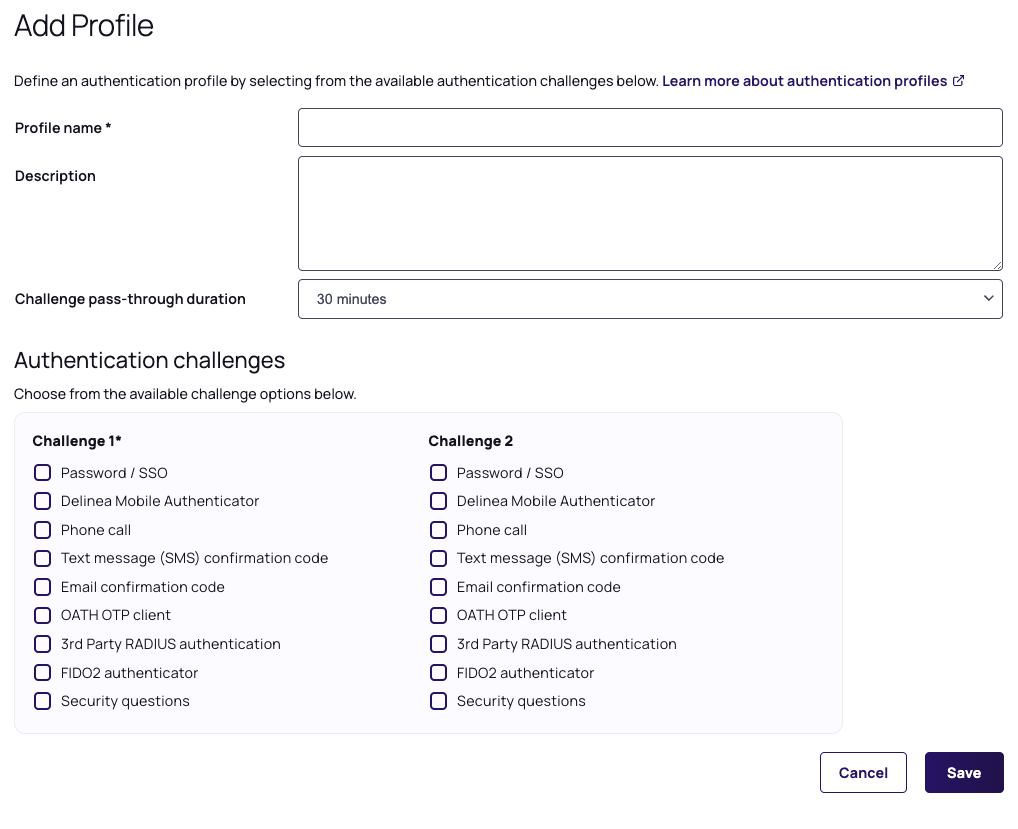
Fill in the fields on the form:
-
Profile name: a unique name for the profile
-
Description: a brief description of the profile
-
Challenge pass-through duration: Choose an option from the dropdown menu. This sets how recently the session must have satisfied an authentication mechanism for the platform to skip that step-up challenge. The default is 30 minutes.
This setting applies only to step-up MFA requests. It does not apply to platform log-ins. The identity policy and its assigned login profile determine login challenges.
If you select No pass-through, users complete MFA each time an action requires it, regardless of recent authentication.
Caching of a successful authentication can suppress a prompt for up to 5 minutes. This applies to any pass-through setting, including No pass-through.
Challenge pass-through duration is a platform-side setting. It is independent of your IdP's SSO session lifetime. Selecting No pass-through guarantees the platform issues a step-up challenge for each qualifying action. It does not force the IdP to re-authenticate the user.
See Understanding Challenge Pass-Through Duration for a worked example and a table of when pass-through duration applies.
-
Authentication challenges: Select one or more of the authentication mechanisms available for Challenge 1 and Challenge 2.
-
-
Click Save.
Notes:
Some authentication mechanisms, such as FIDO2, require additional configurations before users can authenticate with them.
If a user is presented with multiple challenges, the platform waits until the user completes all challenges before giving the authentication response (pass or fail). For example, if the user enters the wrong password for the first challenge, the platform does not send the authentication failure message until after the user responds to the second challenge.
If a user fails the first challenge, and the second challenge is SMS, email, or phone call, by default the platform will not send the SMS/email or trigger the phone call.
Federated users can be prompted for additional MFA challenges within the platform. This applies to logging into the platform and any browser-based step-up MFA, such as step-up MFA for Secrets. The identity policy setting "Platform login via federation satisfies all MFA mechanisms" should be disabled to allow for this.
Special consideration: As support for federated users for MFA has been recently enhanced, if you have enabled the platform upgrade from Verify Privilege Vault to require multi-factor authentication, then access to the Verify Privilege Vault application will be gated by MFA for all users, including federated users. Ensure your federated users have appropriate MFA in place; otherwise, they cannot access the Verify Privilege Vault application.
Understanding Challenge Pass-Through Duration
Challenge pass-through duration controls how often the platform re-prompts a user for step-up MFA. Step-up authentication is an additional challenge the platform requires for a sensitive action after login.
Completing a challenge does not start a countdown. Instead, the platform evaluates each step-up challenge on its own, at the moment that challenge is initiated. It checks when the session last satisfied the required authentication mechanism. If the user satisfied that mechanism within the pass-through duration, the platform does not present the challenge. Otherwise, the user completes it.
Because the platform evaluates each challenge separately, a step-up request can be partly satisfied. A request that presents two challenges prompts only for the mechanism the user has not satisfied recently enough.
Pass-through duration has no effect on platform log-ins, because the platform has no earlier session activity to check. The identity policy that matches the user determines login challenges. See Identity Policies.
Example
An administrator sets the challenge pass-through duration on the step-up profile to 30 minutes. The following sequence shows how the platform evaluates repeated access to the same secret.
-
The user logs in to the platform. The identity policy determines the login challenges. Pass-through duration is not involved.
-
The user opens an MFA-protected secret. The platform prompts for step-up MFA, and the user satisfies the required mechanism.
-
Fifteen minutes later, the user reopens the same secret. No prompt appears, because the session satisfied that mechanism within the last 30 minutes.
-
Forty-five minutes after the first prompt, the user reopens the secret again. The platform prompts again, because the last response to that mechanism falls outside the 30 minutes.
A different step-up action follows the same rule. If the action requires a mechanism the user satisfied recently enough, no prompt appears. If it requires another mechanism, the user completes that challenge. The type of action does not decide the outcome; the mechanism does.
Caching of a successful authentication can suppress a prompt for up to 5 minutes, so a prompt can appear later than this example suggests.
When Pass-Through Duration Applies
| Scenario | Pass-Through Duration Applies? |
|---|---|
| Logging in to the platform | No. The identity policy and its assigned login profile set the challenges. |
| Logging in from a new device | No. The Default New Device Login Profile applies unless the identity policy assigns another profile. |
| Opening or editing an MFA-protected secret, or exporting a list of secrets that includes one | Yes. See Using MFA for Secrets. |
If users report an MFA prompt at every login despite a long pass-through duration, this is expected behavior. Pass-through duration applies only to step-up requests. To change login prompts, edit the identity policy and its assigned login profile.
Federated users may never see a step-up prompt. The identity policy setting Platform log in via federation satisfies all MFA mechanisms is enabled by default. See Step-Up MFA for Federated Users.
Authentication Challenges
This feature is not available in FedRAMP-compliant tenants.
You can select the authentication challenges available to users. However, the challenges actually presented to the user depend on the account’s properties. For example, if you select all the mechanisms, but a user account has only a username and email address, the login prompt presents only those two challenges.
The following mechanisms are available:
-
Password/SSO: The user is prompted for either their Active Directory password or Platform account password, or they are directed to the appropriate federation identity provider to complete the authentication.
For federated users, the outcome of this challenge depends on the state of the IdP session.
The platform cannot force an identity provider (IdP) to re-authenticate a user who holds a valid browser-cached Single Sign-On (SSO) token. A Password/SSO step-up challenge therefore grants access silently when an IdP session is active. This is IdP session behavior, not a platform defect.
This behavior is independent of the Challenge pass-through duration setting, which is a platform-side setting.
To guarantee a visible step-up prompt for federated users, select a platform-native challenge instead, such as the IBM Security Credential Manager Authenticator, Email confirmation code, or FIDO2 authenticator.
-
IBM Security Credential Manager Authenticator (mobile): The user authenticates using a one-time passcode displayed in the Credential Manager (mobile) application on their mobile device. If the user’s mobile device is connected through the cellular network or through a wi-fi connection, the user can send passcodes from the devices. If the user’s mobile device is not connected in these ways, the user must manually enter the passcode in the login prompt.
-
Phone call: Verify Privileged Identity Platform calls the user at the stored phone number (mobile or land line) and describes an action the user must complete to authenticate from the device to log in. Phone PIN must be enabled.
-
Text message (SMS) confirmation code: The Verify Privileged Identity Platform sends a text message to the user’s mobile phone with a one-time confirmation code, which the user must enter at the login prompt.
-
Email confirmation code: The Verify Privileged Identity Platform sends an email to the user with a one-time confirmation code, which the user must enter at the login prompt.
-
OATH OTP client: The user can use a third-party authenticator such as Google Authenticator to generate a one-time passcode (OTP). This authentication mechanism requires additional configuration.
-
3rd Party RADIUS authentication: The platform communicates with the client’s RADIUS server to allow for user authentication to the platform.
-
FIDO2 authenticator: FIDO2 is an authentication standard hosted by FIDO Alliance. FIDO2 includes the Web Authentication ("WebAuthn") API specification, written by the World Wide Web Consortium (W3C) and FIDO, with participation from third parties. The WebAuthn API is backward compatible with Universal 2nd Factor (U2F) keys. IBM Security leverages the WebAuthn API to enable authentication to the platform without passwords, using either on-device authenticators or external authenticators. On-device authenticators are biometric authenticators integrated into the device hardware. Popular examples are Mac Touch ID, Windows Hello, and fingerprint scanners. External authenticators are security keys that you plug into the device's USB port, such as a YubiKey.
-
Security questions: The user is prompted to answer security questions defined by the user or by a platform administrator. When creating an authentication profile, you can specify the number of questions the user must answer. You can also specify the number of user-defined and administrator-defined questions available to the user. A user can create or update any available user-defined question or answer from their platform user profile page.
Assigning a Login Authentication Profile
Once you have an appropriate authentication profile set up and enabled, the next step is to assign the profile to an identity policy. The following represents the bare minimum when setting up a policy:
-
Navigate to the Identity Policies page.
-
Click the name of a policy. (To add a new policy, see Creating Identity Policies).
-
Click the Authentication tab.
-
In the Services section, click Edit.
-
For Enable authentication policy controls, select the box next to Enabled.
-
Next to Default authentication profile, select an appropriate authentication profile from the drop-down menu. See Important warning below about the Deny platform authentication profile.
-
Optional: You can add Authentication Rules to define conditions for authentication challenge requirements. Each rule maps to a customizable authentication profile. If no rules are configured, the default profile is used.
-
Click Save.
If you select Deny platform authentication in the Default authentication profile drop-down and you configure no authentication rules, users will not be able to log in to the service. To use this profile appropriately, see Restricting Login to Specific Groups.
- For optimal policy implementation, we recommend initially assigning the policy to only a small test user group before assigning it for real world use. This approach allows you to recover gracefully from issues that might arise, with minimal impact.
- Once you enable authentication policy controls, you can configure the rest of the policy options on the same page. For detailed information, see Creating Identity Policies.
Global Security Settings
This feature is not available in FedRAMP-compliant tenants.
-
Click Settings from the left navigation, then select Global Security.
-
Click the Configuration tab. The page displays the global authentication options you can configure.
-
Click Edit. The page changes, enabling you to modify the settings used by MFA, such as phone numbers and email addresses. These settings include the following:
-
Authentication Parameters:
-
Enable forgot username self-service at login
Allows a user to retrieve a forgotten username. The user is prompted to enter an email address, and if the email address matches a platform account, the platform sends the username to that email address. -
Allow Login Using AD Short Name
When using the AD Connector, this setting controls whether users can log in using their sAMAccountName, which is a short-form Windows username that does not include a domain. This setting is enabled by default, allowing users to authenticate using their sAMAccountName. Disable this setting only if you require users to authenticate with their UPN. -
Securely calculate originating IP address
Controls how the system determines the IP address of incoming requests. When enabled, the system uses a more reliable method to identify the originating IP address rather than relying on the X-Forwarded-For header, which can be spoofed or return incorrect values when traffic passes through proxies. -
Send email notification to users when password is changed
Sends an automated email after a user resets their platform password using the forgot password process.
-
-
Passcode Length: You can set the confirmation passcode length to 6 or 8 digits. The default is 8 digits.
-
Additional Attributes for MFA: You can add more attributes for MFA, such as other mobile phone, other home phone, other office phone, and other email addresses.
Security Questions
This feature is not available in FedRAMP-compliant tenants.
You can define questions that users can choose and answer to authenticate to the platform.
-
Click Settings from the left navigation, then select Security Questions.
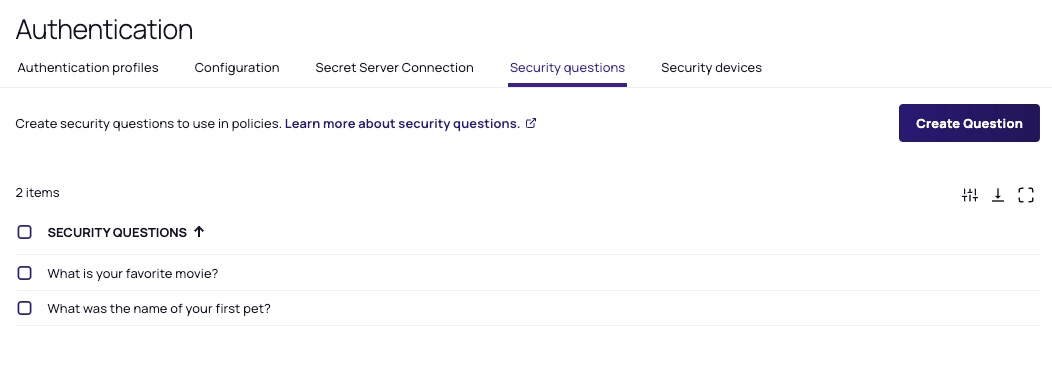
To add a security question:
-
Click Create Question.
-
Type a question in the text field.
-
Click Add.
Security Devices
This feature is not available in FedRAMP-compliant tenants.
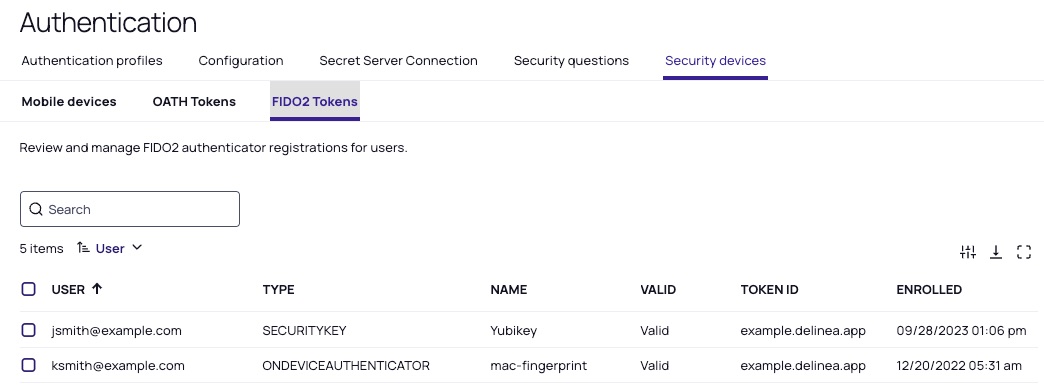
Click Settings from the left navigation, then select Security devices.
-
The Mobile devices sub-tab displays instances of registered mobile applications with the associated users.
-
The OATH Tokens sub-tab displays registered OATH tokens for third-party authenticators, such as Google Authenticator and Microsoft Authenticator.
-
The FIDO2 Tokens sub-tab displays registered FIDO2 tokens for third-party authenticators, such as U2F, that use specialized Universal Serial Bus (USB) devices or near-field communication (NFC) devices.
The Verify Privileged Identity Platform currently supports only the following methods for FIDO2:
-
packed
-
fido-u2f
-
android-safetynet
-
tpm
-
none
-
android-key
Step-Up MFA for Federated Users
This feature is not available in FedRAMP-compliant tenants.
Federated users authenticate through an external IdP, such as Microsoft Entra ID or Okta. How a federated user completes a step-up challenge depends on the challenge type and the IdP session state.
Whether federated users receive step-up challenges at all is controlled by the identity policy setting Platform log in via federation satisfies all MFA mechanisms. The setting applies to both login and step-up MFA within the identity policy that matches the user. See Other Settings.
Federation IdPs and MFA Providers
A federation IdP authenticates the user at platform login. A dedicated MFA provider, such as Duo, is a separate integration the platform calls only to issue a step-up challenge; it does not log the user in. The same vendor can hold both roles: for example, Okta can act as a federation IdP or as an MFA provider.
Entra ID cannot serve as a dedicated MFA provider. To use IdP-based MFA for a step-up challenge, the platform can only redirect the user to the IdP via the Password/SSO challenge.
The platform cannot force an identity provider (IdP) to re-authenticate a user who holds a valid browser-cached Single Sign-On (SSO) token. A Password/SSO step-up challenge therefore grants access silently when an IdP session is active. This is IdP session behavior, not a platform defect.
Unsupported: Forced IdP Re-Authentication for Step-Up
You cannot allow cached SSO tokens at platform login while forcing fresh IdP authentication for step-up challenges. Within the identity policy that matches the user, the federation setting applies to both. Identity policies are evaluated in order of precedence, so verify which policy applies to the user.
Use one of the following alternatives:
-
Select a platform-native challenge in the step-up authentication profile, such as the IBM Security Credential Manager Authenticator, Email confirmation code, or FIDO2 authenticator. Platform-native challenges are not affected by IdP session state.
-
Integrate a dedicated MFA provider, such as Duo, and use it as the step-up challenge.
-
Configure re-authentication in your IdP. For example, use Microsoft Entra Conditional Access sign-in frequency policies.
-
Accept time-based control through Challenge pass-through duration, which limits how recently a satisfied mechanism counts.