Working with Session Review
Session Review provides an additional level of security by recording a user's actions after a session is launched.
The Verify Privileged Identity Platform captures second-by-second screen shots in the browser during a user's recorded session. These images of the user's screen are compiled into a video that can be played back for auditing and security purposes.
Session Review allows users with the appropriate RBAC or ABAC permissions to view all active launched sessions within the platform.
If Session Review is enabled on the secret, an administrator can watch the user's session in real time or after the session recording has been completed.
Recordings listed in the Session Review table that are sourced from Verify Privilege Vault On-Premises systems are not supported for viewing or analysis. Playback is only supported when requested from the same network as the isvp-vault On-Premises installation.
Session recordings are stored indefinitely unless an auto archive is configured.
Session recordings are encrypted at rest.
Enabling Session Review
Before you can view session recordings on the platform, a session recording must be configured within the vault on both the tenant and secret level. See Configuring Session Recording to configure Session Recordings within your Verify Privilege Vault Cloud instance.
Launching a PRA Session with Session Review Enabled
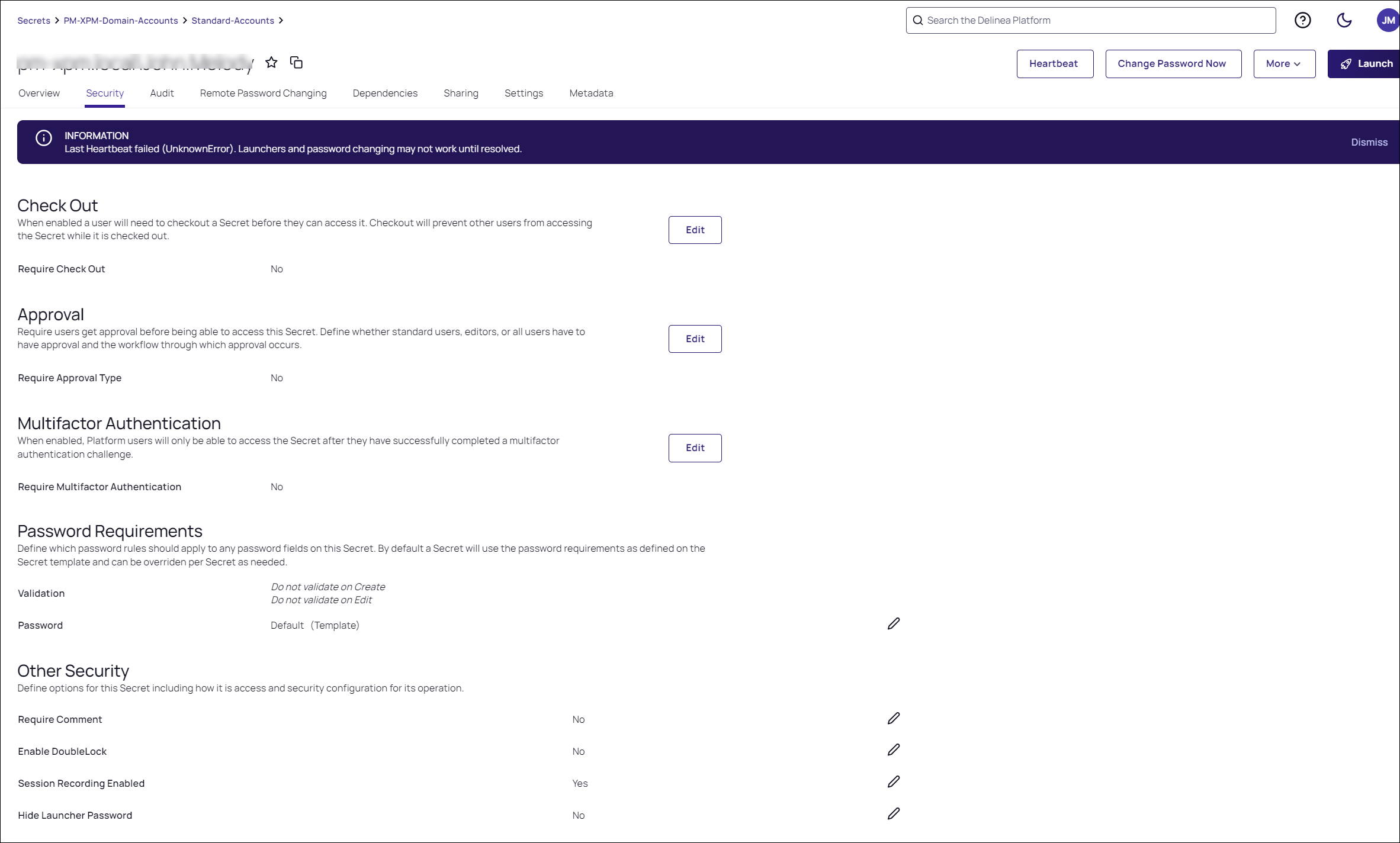
Confirm that a secret has session recording enabled. Select the secret and navigate to the Security tab. In the Other Security section of the page, the Session Recording Enabled field indicates enabled.
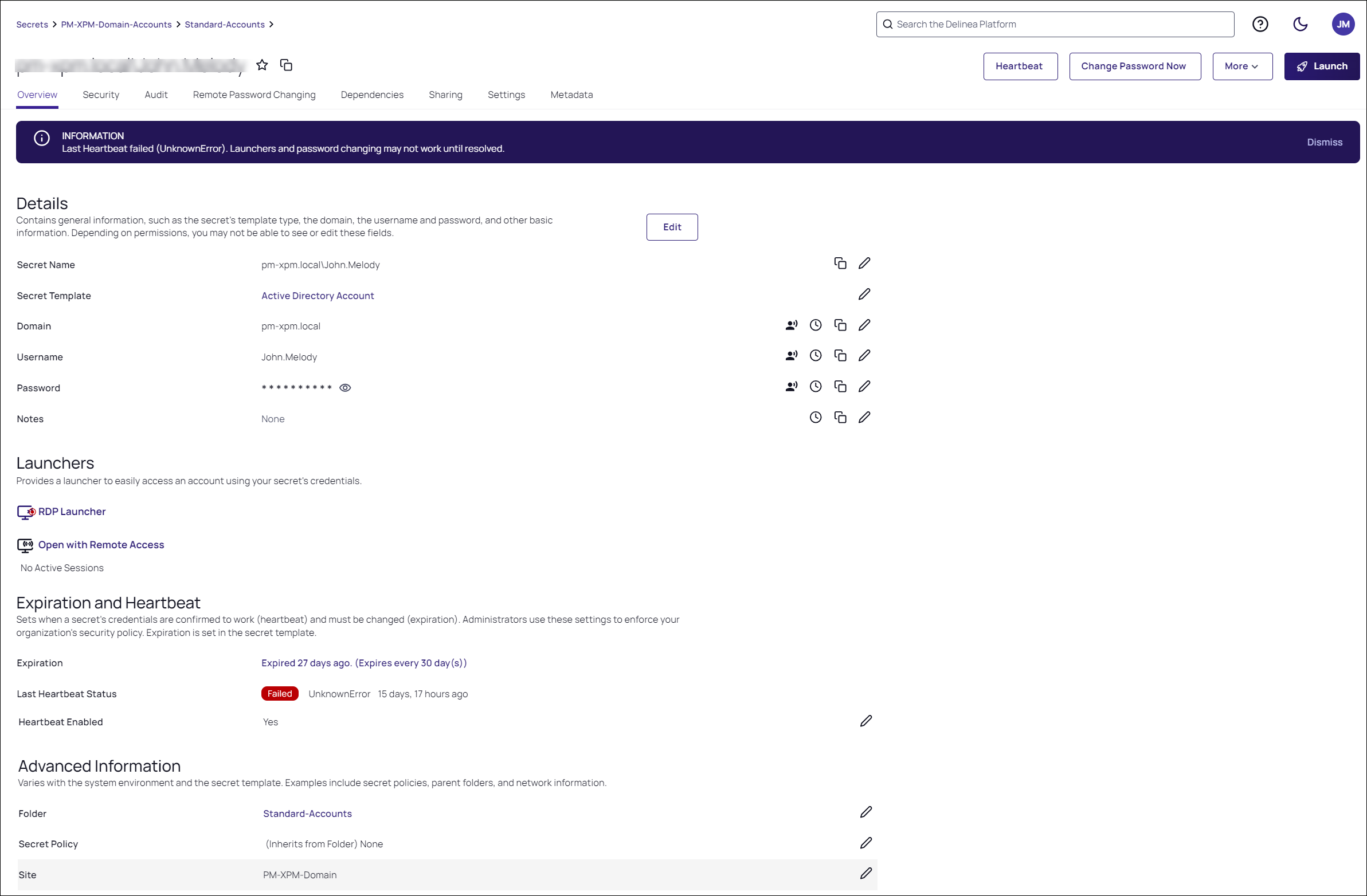
On the Overview tab, under Launchers, select Open with Remote Access to start a remote access session to the target machine.
Enabling Metadata Recording
By default, session recording creates videos of the launched session. In addition to video, the Verify Privileged Identity Platform supports logging additional metadata, such as keystrokes for RDP and SSH sessions. When these options are enabled, users can search for keystrokes or applications across sessions, and the session playback interface shows additional activity information.
Remote Desktop session metadata requires Verify Privilege Vault 10.6 and the advanced session recording feature. This feature requires installation of Verify Privilege Vault’s advanced session recording agent (ASRA), or Direct Audit agent on the target servers. See Installing the Advanced Session-Recording Agent.
RDP keystroke data can also come from the Verify Privilege Vault RDP proxy or session connector, without installing ASRA on the target servers.
RDP keystroke data records the keys a user presses, not content pasted from the clipboard. For RDP sessions recorded by ASRA or the RDP proxy, pasted text does not appear in keystroke data. A paste appears only as the keys pressed, such as Ctrl+V. Sessions launched through the session connector are the exception: when clipboard redirection is enabled for the session, text pasted with a keyboard shortcut is recorded as keystrokes. The session video still shows any pasted content that appears on screen.
SSH keystroke data relies on the Verify Privilege Vault SSH Proxy. To enable SSH Proxy, see SSH Proxy Configuration.
When the proxy is enabled, recorded SSH sessions log SSH traffic, which can be searched and displayed in the Session Recording playback interface. See Viewing Recorded Sessions.