Setting Up Resilient Secrets With the Verify Privileged Identity Platform
Verify Privilege Vault offers Resilient Secrets for organizations to protect and recover their IT infrastructure and data as part of an overall disaster recovery strategy. (Learn more).
Resilient Secrets can be used with Verify Privilege Vault Cloud, On-Premises and the Verify Privileged Identity Platform.
The Resilient Secrets functionality does not fully replace a business continuity strategy and should not be used as a failover feature.
Prerequisites
-
A Verify Privileged Identity Platform instance integrated with Verify Privilege Vault.
-
Verify Privileged Identity Platform customers after November 2023 already have Verify Privilege Vault Cloud integrated.
-
Legacy customers of Verify Privilege Vault Cloud who upgrade to the Verify Privileged Identity Platform must integrate the two products.
-
Verify Privilege Vault on-premises customers who purchase the Verify Privileged Identity Platform to use PRA can perform a manual upgrade.
-
-
An additional Verify Privilege Vault cloud or on-premises instance that will act as the replica. This instance must not be connected to any other Verify Privileged Identity Platform.
Customers have the option to buy more than one instance of Verify Privilege Vault, if they want to have multiple replicas.
The Verify Privilege Vault requirements for replica instances are the same as for the source instance. See Verify Privilege Vault System Requirements for more information.
How Do Resilient Secrets Work?
The Resilient Secrets feature copies information from the source Verify Privilege Vault instance to the replica. Information on the replica Verify Privilege Vault will be overwritten by the source for anything copied.
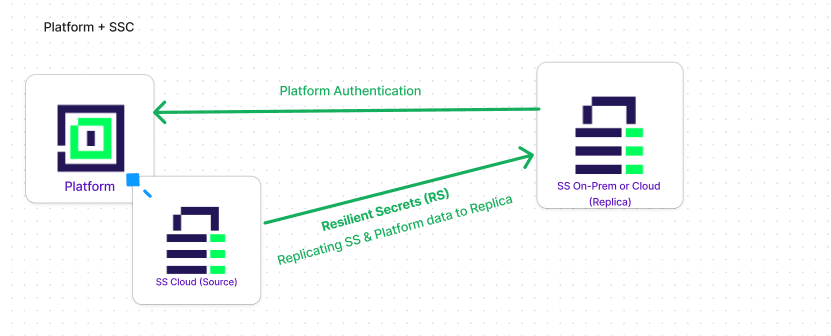
The configurations for the Cloud and On-Premises replicas are the same. There is nothing you would need to do differently, configuration wise, when setting up a Cloud replica as opposed to On-Premises and vice-versa. The following diagram represents the flow of data from the source instance to the replica in both the Verify Privileged Identity Platform and Verify Privilege Vault respectively:
-
The Verify Privileged Identity Platform is connected to Verify Privilege Vault via an encrypted connection.
-
Verify Privilege Vault (Source) is connected to a replica (either Verify Privilege Vault Cloud or Verify Privilege Vault On-Premises) via an encrypted connection.
-
The replica pulls the data package from the Source.
-
When the Verify Privileged Identity Platform is available, users can log in to the replica with their Verify Privileged Identity Platform credentials.
-
When the Verify Privileged Identity Platform is not available, users can log in to the replica via SAML or via local accounts
Only one Verify Privileged Identity Platform and Verify Privilege Vault Cloud pair is supported.
Read-Only Mode: Replicas should be in read-only mode during operation because there can only be one source of truth – the Source instance.
Cloud Replicas: Set up a replica Verify Privilege Vault Cloud in a different geographic region (if both replica and cloud instances are in the same region, an issue impacting that region could disrupt both).
Best Practices
-
On-Premises Replicas: For the replica (Verify Privilege Vault on-premises), we recommend creating a couple of local accounts on that instance so that, in the event of a complete service outage, you will still be able to log in to the replica instance with your local account.
Do not set up directory sync on the replica instance. This can cause duplicate users to appear when syncing users with the Verify Privileged Identity Platform. Replicate the directory from the source instead
Do not enable User Sync under Directory Services on your replica instance while also having Resilient Secrets replicate Users from the same directory. This configuration can cause conflicts with replication and eventually may cause database deadlocks.
-
On-Premises Systems: On-Premises systems involved in Disaster Recovery/Resilient Secrets a Source or Replica require a site connector using RabbitMQ
Verify Privileged Identity Platform with Verify Privilege Vault Cloud and Replica Verify Privilege Vault Cloud
Cloud replicas respect the user login settings of the Verify Privileged Identity Platform. All configurations are copied from the Verify Privileged Identity Platform to the replica Verify Privilege Vault Cloud.
In the event of a service outage where the source Verify Privilege Vault Cloud goes down, users will still be able to log in to the replica Verify Privilege Vault Cloud tenant using their Verify Privileged Identity Platform credentials.
If you have an external user source (Entra ID, Okta, etc.) for Platform login, those log-ins will also work with the Cloud replica, as long as those sources are still online. If federation providers are down, you can log into Verify Privilege Vault with your local accounts.
Local Accounts should be created ahead of time, before a Disaster Recovery event occurs.
When an Active Directory (AD) user is added to the Platform through the AD Connector, the resulting account is created as a local user rather than an Active Directory user. This local user account can be managed independently, including setting a separate password and enabling Verify Privilege Vault multi-factor authentication (MFA) options.
Verify Privileged Identity Platform with Verify Privilege Vault Cloud and Replica Verify Privilege Vault On-Premises
On-premises replicas respect the user login settings of the Verify Privileged Identity Platform. All configurations are copied from the Verify Privileged Identity Platform to the On-Premises replica.
After logging in to the On-Premises replica with your Verify Privileged Identity Platform credentials, you will still be in the Verify Privilege Vault On-Premises UI.
Typically, a user could log in to the on-premises replica from its login page using their Verify Privileged Identity Platform credentials, but to prepare for an outage, you must have alternative methods available.
Make sure the On-Prem replica has an outbound rule allowing traffic to the Cloud source over port 443 (HTTPS).
On-Premises Replica Authentication for Verify Privileged Identity Platform-Based Login
In the event of a service outage, the Verify Privileged Identity Platform login capability will not be available. To ensure access during an outage, you should prepare an alternative login method, such as configuring SAML for your IdP source (see SAML and OIDC Federation) which will allow users to log in with their Verify Privileged Identity Platform credentials. The IdP can be a self-hosted SAML provider (ADFS or other self-hosted option) and does not need to be the same IdP as used by the Verify Privileged Identity Platform.
On-Premises Replica Authentication for Federation-based Login
In the event of a service outage that interrupts federated credential providers (Entra ID, Okta etc.), users will still be able to log in as long as you have:
-
Configured both source and replica to accept those federation services.
-
Configured the on-premises replica to use SAML. If the user source is also down, you will only be able to log in with local accounts.
In the event of a service outage, administrators who set up a local account for their on-premises replica will still be able to log in with that account. Any other local accounts you create will also be able to log in.
On-Premises Source With Cloud Replica (Verify Privilege Vault Cloud or Verify Privileged Identity Platform)
-
Make sure the on-premises source has an inbound rule allowing traffic from the Cloud replica over port 443 (HTTPS).
-
Make sure you have a custom URL set.
-
When setting up replication from multiple nodes, the application account needs to have access to a shared directory all of the nodes can write to.
Frequently Asked Questions
-
How does the Verify Privilege Vault Primary Source connect to Verify Privileged Identity Platform?
The Primary Verify Privilege Vault (Source) is connected to the Verify Privileged Identity Platform via an encrypted connection. On the Verify Privileged Identity Platform see (Settings > Secret Server Connection). At this time, only one connection from Verify Privileged Identity Platform to Verify Privilege Vault is possible.
-
How are Resilient Secrets licensed? Do you get just Resilient Secrets (Verify Privilege Vault Cloud) or a new instance of the Verify Privileged Identity Platform + Verify Privilege Vault Cloud?
Since Resilient Secrets is a functionality of Verify Privilege Vault, every instance of Verify Privilege Vault needs to be licensed. You can only have one instance of the Verify Privileged Identity Platform and Verify Privilege Vault, acting as the Source, but you may choose to purchase multiple Replica instances.
-
How does a Verify Privilege Vault Cloud Replica need to be configured with the Primary Verify Privileged Identity Platform + Verify Privilege Vault Cloud Source?
There is no special configuration for Cloud or On-Premises replicas to connect to the Verify Privileged Identity Platform. This is done on the Primary (Source) Verify Privilege Vault. Please refer to Setting Up Resilient Secrets for more information.
-
Will Resilient Secrets work if you have 2 instances of the Verify Privileged Identity Platform - each connected to their OWN Verify Privilege Vault Cloud - EXAMPLE - 2 instances of the Verify Privileged Identity Platform and 2 Instances of Verify Privilege Vault Cloud.
No, Verify Privilege Vault Cloud only supports one Verify Privileged Identity Platform instance at a time. (The Source)
-
How does Platform in Verify Privilege Vault Cloud Unified roles and permissions work with Resilient Secrets?
In unified mode your primary instance of Verify Privilege Vault Cloud (the source) pulls role and permission assignments from platform. This information is then replicated/copied over to the replica Verify Privilege Vault.
-
How do you configure Resilient Secrets to ensure you have access to Secrets when the Verify Privileged Identity Platform Is NOT Available?
There are two ways you can log in to your Replica instance if the Verify Privileged Identity Platform is not available:
-
Configure SAML: Configure SAML with your IdP (Identity Providers)
-
Logging in with local accounts – In the event that everything fails, you will need to have created “break glass” local accounts on the Replica Verify Privilege Vault. As mentioned in the Best Practices section earlier, IBM Security recommends creating these local accounts as soon as you provision the Replica instance.
-
-
How do you configure Resilient Secrets to ensure you have access to Secrets when Entra ID (Azure AD) is not available?
Configure SAML with your IdP and/or create local accounts on the Replica instance so you can log in when no directory services are available.
If you create local accounts on the source, they will be copied to the replica.
-
How do I download and Install Resilient Secrets as a Verify Privileged Identity Platform customer?
Resilient Secrets is built upon Verify Privilege Vault. To have Resilient Secrets on-premises you will need to install Verify Privilege Vault On-Premises (see downloading Verify Privilege Vault). If you want Resilient Secrets in the Cloud, you will need to have a second instance of Verify Privilege Vault Cloud.
Please contact Sales or Support for purchase questions.
-
I’m in the process of transitioning from Verify Privilege Vault Cloud to the Verify Privileged Identity Platform. I have a Replica Instance (on-premises or cloud). Upon standing up the Verify Privileged Identity Platform, tenant secrets are no longer synced.
-
Look for errors in the Resilient Secrets replication logs (Disaster Recovery Log tab on the Replica).
-
If secrets are skipped, some vital data may be missing.
-
Run data either Since Last Replication or Since Last Replication. If this does not resolve the issue and you cannot determine the errors from the logs, please reach out to support and open a case/work item.
-
-
Why do Verify Privileged Identity Platform users lose permissions when logging out and back into a disaster recovery (DR) replica instance?
This typically occurs due to configuration issues with Platform authentication on the DR replica instance. To resolve this issue, verify the following:
-
Network Connectivity and Platform Communication: Ensure bidirectional HTTPS communication between your DR replica instance and the Verify Privileged Identity Platform. The DR replica must be able to communicate with Platform to refresh the permission cache (
tbPlatformPermissionCache). Firewall rules must allow outbound connections from the replica to Platform, and network restrictions can prevent proper Platform upgrade, causing permissions to appear lost after logout/login cycles. -
Platform Redirect URL: The DR replica's
tbConfigurationmust have the correct PlatformRedirectUrl value set via SQL query:-
UPDATE tbConfiguration
-
SET PlatformRedirectUrl = 'https://your-dr-replica-url'
-
-
Unified Mode Consistency: If your Verify Privilege Vault Cloud source is in Unified Mode (tbPlatformConfiguration.UsePlatformSettings = true), ensure your DR replica is also configured for Unified Mode.
If permissions still disappear after verifying these settings, contact IBM Security Support as this may indicate a deeper networking or configuration issue preventing proper Platform upgrade.
-
Troubleshooting
Issue: Duplicate users appear on the replica
Cause: Directory Services and User Synchronization were enabled on the replica while Resilient Secrets replicated the same users from the source.
Solution:
- On the replica, disable Directory Services.
- On the replica, disable User Synchronization.
- Run a Disaster Recovery synchronization with a custom date set to before the duplicate accounts were created.
- Verify that only one enabled account exists per user.
Issue: Users lose group membership and secret or folder access after synchronization
Cause: Two synchronization sources manage the same users. When Verify Privilege Vault directory synchronization and Platform or Resilient Secrets synchronization both run, each pass can overwrite the other's memberships.
Solution:
-
Confirm only one synchronization authority manages each directory. Replicate the directory from the source; do not sync it on the replica.
-
If a disabled duplicate exits, use the Remove PII option.
-
Run a synchronization and confirm the memberships persist through two consecutive sync cycles.
-
If the issue persists, contact Delinea Support
Issue: Replication aborts with a duplicate ADGuid error
Cause: Inactive directory groups on the source share an ADGuid with active groups. Replication stops until the duplicates are resolved.
Solution:
- Note the group names listed in the replication error message.
- Review those groups for inactive duplicates under disabled domains.
- Remove or correct the duplicate groups, or contact Delinea Support for assistance.
- Run the replication again and confirm it completes.