Troubleshooting Website Launcher Issues
The following are common issues you may encounter when launching websites and auto-filling credentials with the Web Password template.
-
Error msg: Browser extension not found
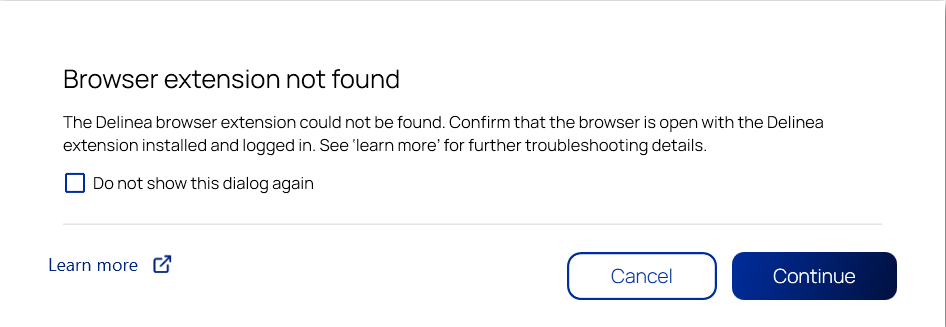
Solution: Verify Privilege Vault Remote was not able to identify a browser with the IBM Security browser extension installed and active. Make sure that the first browser you open after activating the web launcher has the IBM Security browser extension installed and you are signed in.
If you implemented a Native Messaging block list, you need to create an exception within the allow list specifically for Verify Privilege Vault Remote [com.delinea.cm.message_host].
-
Error msg: Browser extension error
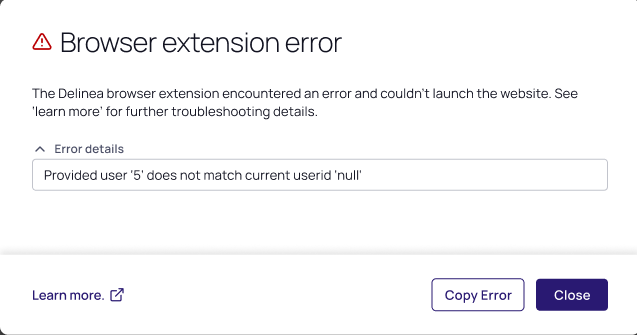
Solution: Check to make you are logged into the IBM Security browser extension with the same username as you used to connect to a IBM Security vault.
-
Error msg: Browser extension error
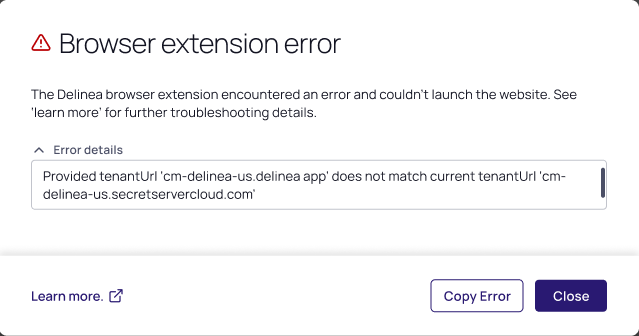
Solution: Check to make sure that you are logged into both the IBM Security browser extension and Verify Privilege Vault Remote with the same tenant URL.
-
No connection between Verify Privilege Vault Remote and the IBM Security browser extension.
Make sure that the
Delinea.ConnectionManager.WebPasswords.Winprocess is in the Task Manager on Windows or Activity Monitor on MacOS. If this process is active:-
Reload/ Reactivate the IBM Security browser extension.
-
Relaunch the browser.
If the process is not active, relaunch the Verify Privilege Vault Remote installer and reinstall or repair Verify Privilege Vault Remote.
-
-
The IBM Security browser extension status is displayed incorrectly on Microsoft Edge.
Due to Microsoft specifications, theDelinea.ConnectionManager.WebPasswords.Winprocess may continue to run on Edge after the browser was closed. If this is the case, open Task Manager and terminate the Edge browser process. -
The IBM Security browser extension fails to launch valid vault URL
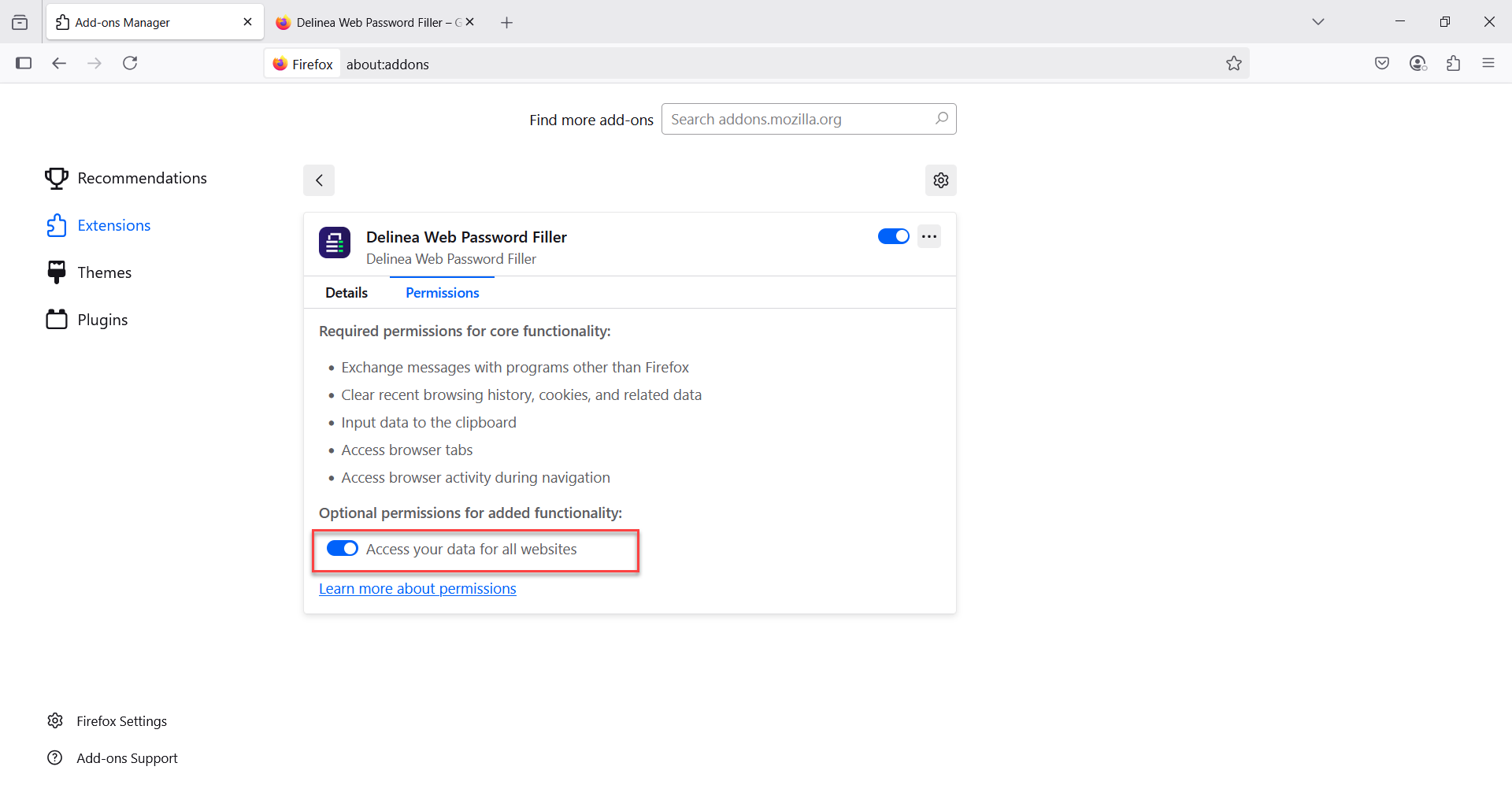
Check to make sure that the Access your data for all websites toggle is enabled in the IBM Security browser extension permission settings.