Setting Up the Mac Launcher
To set up the Mac launcher, simply follow these steps:
-
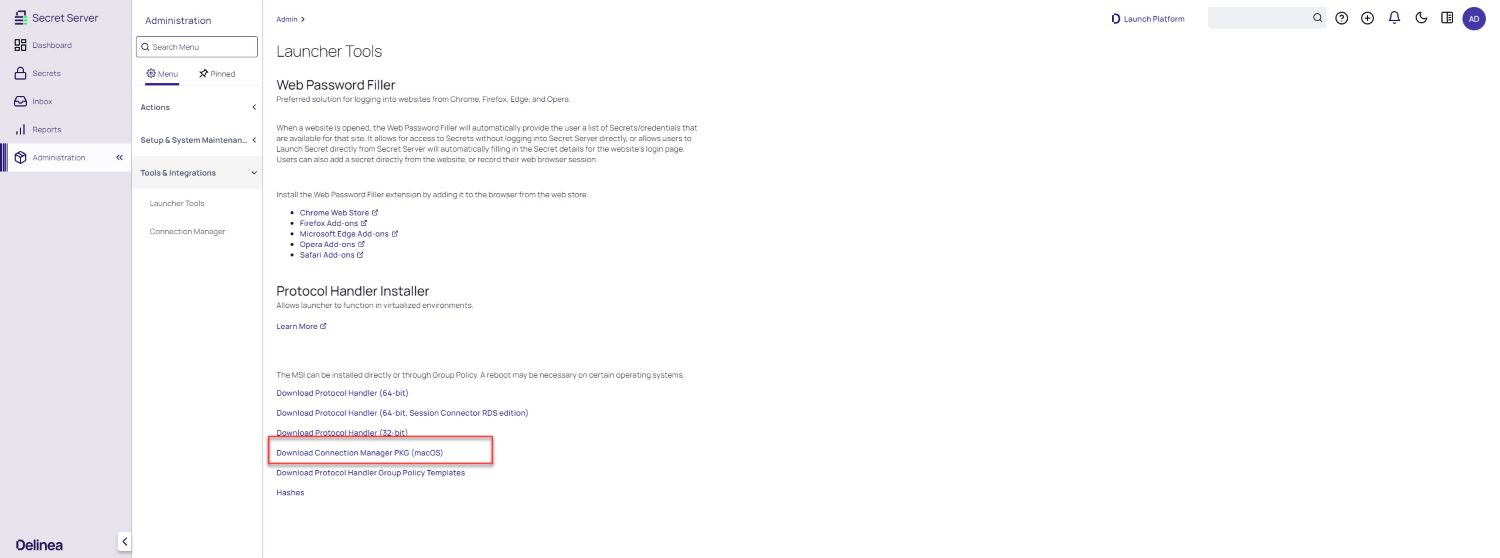
Inside Verify Privilege Vault, navigate to Admin | Launcher Tools.
-
Select the Protocol Handler Installer for macOS
-
Navigate to your downloads directory and install the pkg on your Mac.
After installation, launchers configured in Verify Privilege Vault run on the Mac. Custom launchers use the values in the Mac Settings section of the launcher, not the Windows Settings. On macOS, the Process launcher type launches application bundles only, and command-line tools or shell scripts require a Batch file launcher. For the settings that apply on macOS and a worked example, see Mac Settings in Creating Custom Launchers.
Removing the Mac Launcher
To upgrade or apply a fix to the Verify Privilege Vault Mac Launcher, you must remove the version that is already installed. But first you must prevent the launcher from restarting, and terminate all processes related to the IBM Security Launcher.
-
Open Terminal and type
launchctl remove com.thycotic.thycoticDThis step should remove the ThycoticDaemon and prevent the launcher from restarting, but you might need to perform the step more than once.
-
Open Activity Monitor.
-
Force Quit the ThycoticLauncher process and all related processes. See Quit an app or process in Activity Monitor on Mac.
-
Open Finder.
-
Navigate to Application > IBM Security.
-
Right-click ThycoticLauncher and select Move to Trash.
-
Empty your trash.